

Prerequisites: Before you begin, create an account and complete onboarding.
Getting started
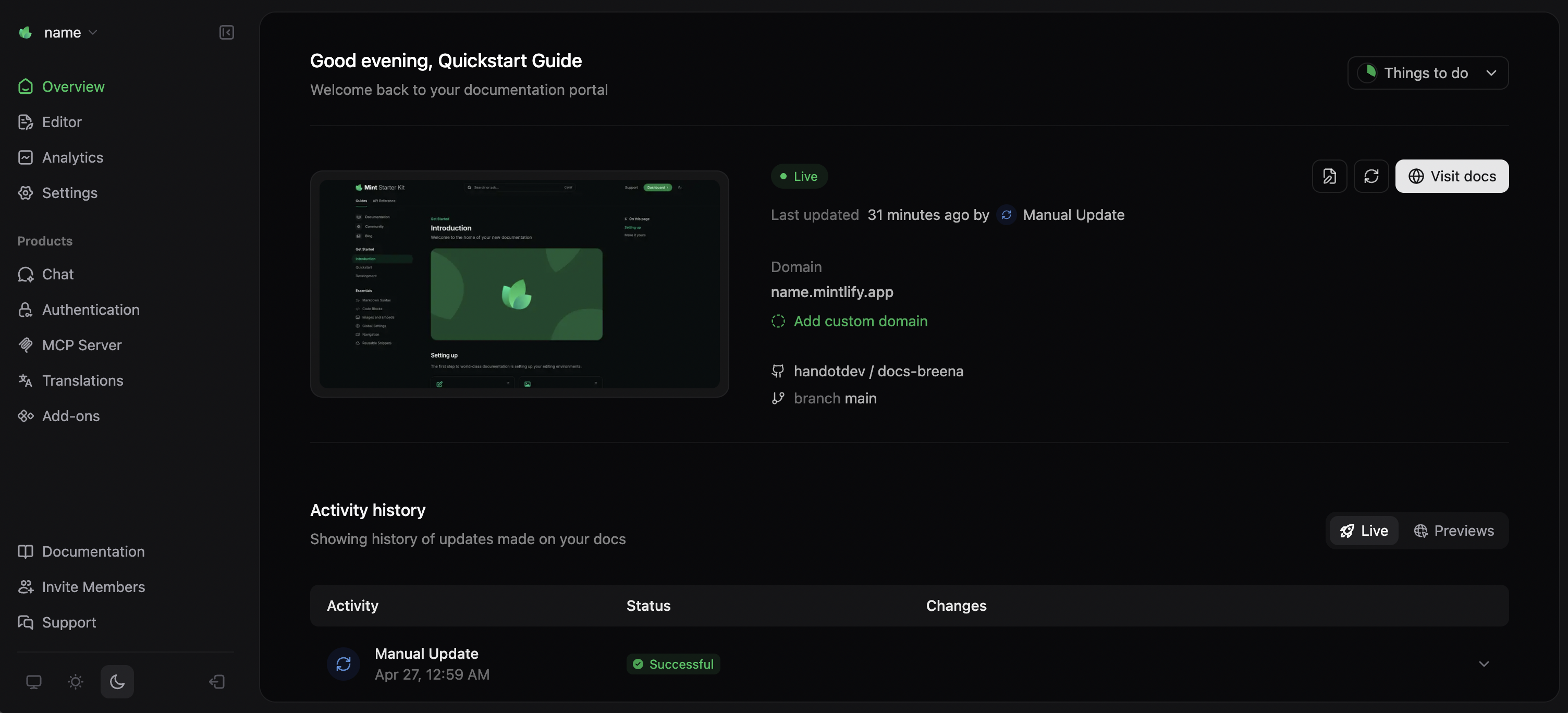
After you complete the onboarding process, your documentation site automatically deploys to a unique URL with this format: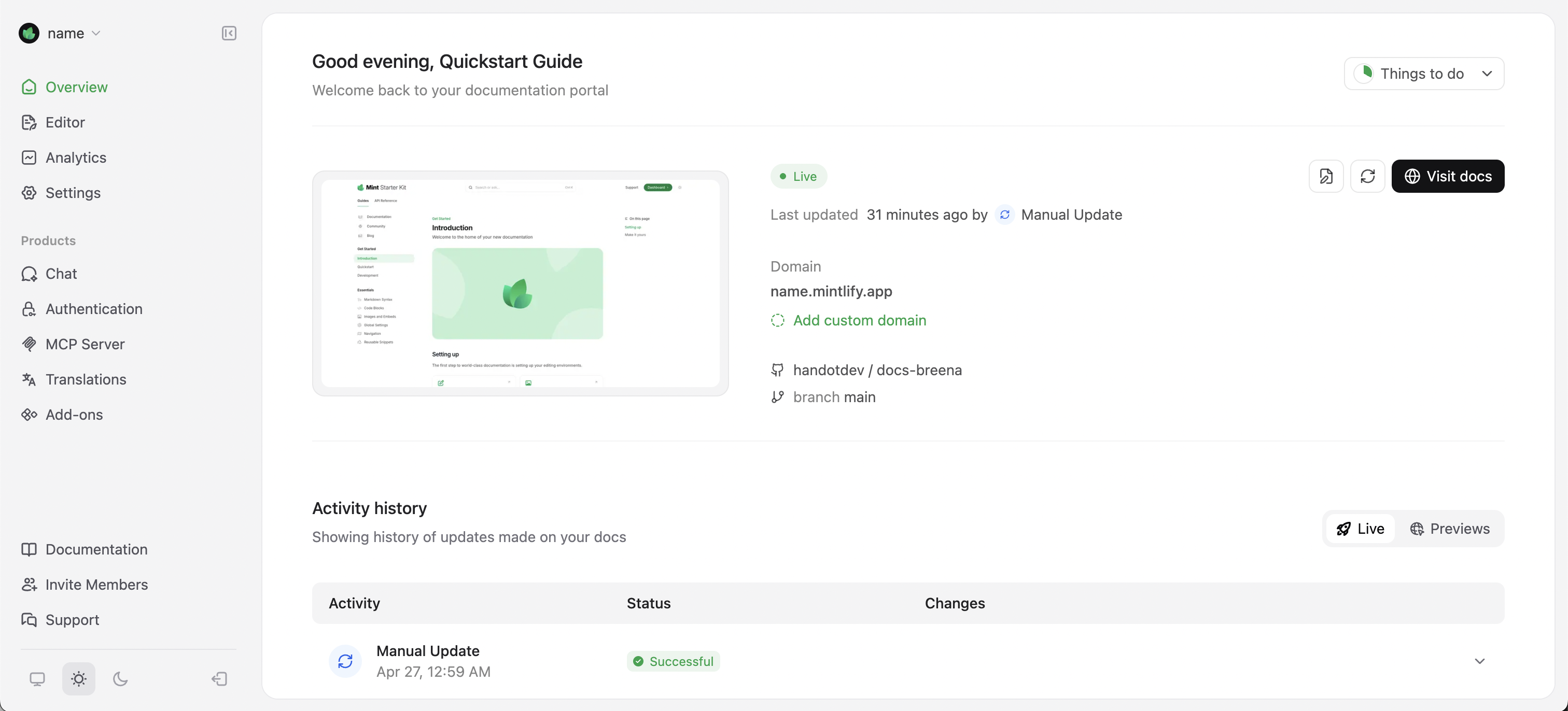
Connect your GitHub repository
Mintlify integrates directly with GitHub to automatically deploy your documentation when you push changes to your repository. This Git-based workflow ensures your documentation stays in sync with your codebase and enables version control, collaboration, and review processes.Install the GitHub App
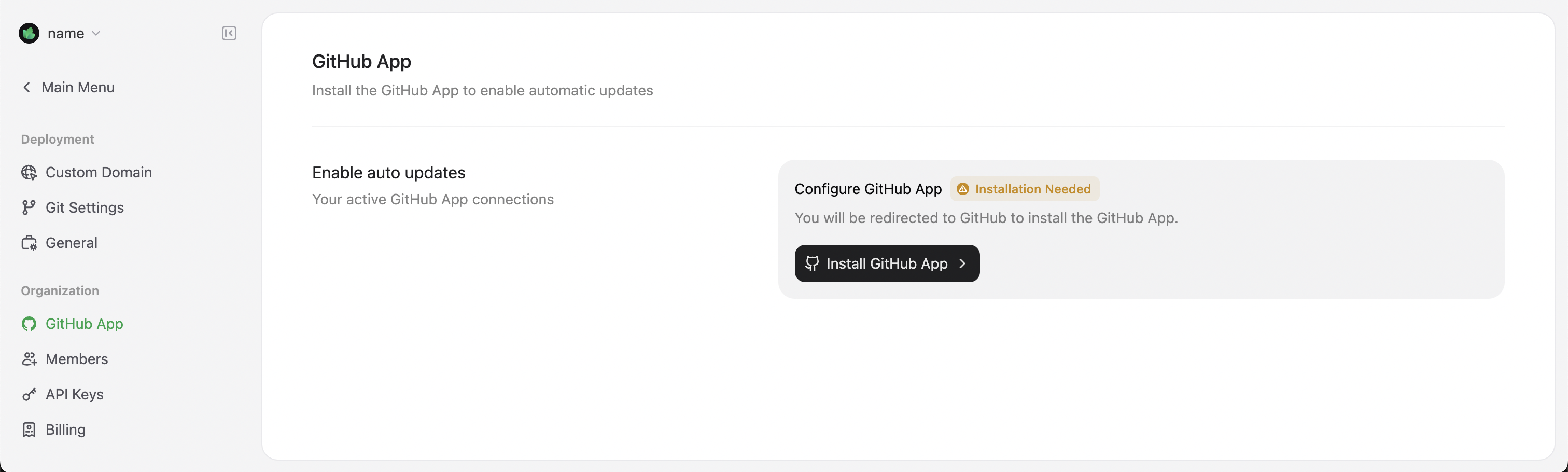
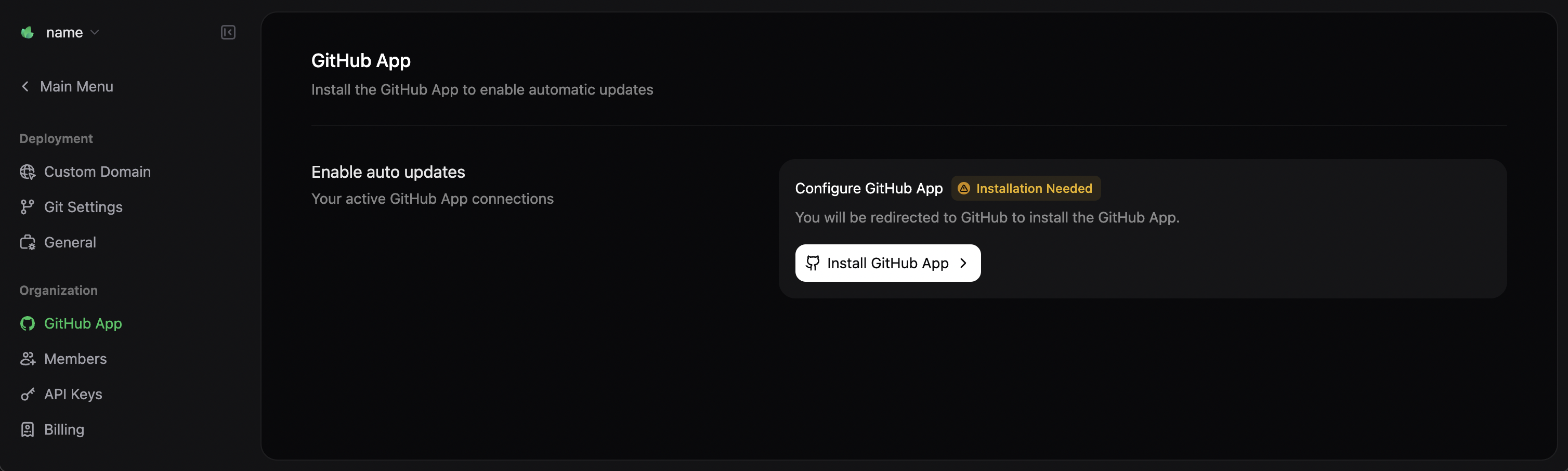
The Mintlify GitHub App monitors your repository for changes and triggers automatic deployments.- Navigate to Settings in your Mintlify dashboard.
- Select GitHub App from the sidebar.
- Select Install GitHub App. This opens a new tab to the GitHub App installation page.
- Select the organization or user account where you want to install the app.
- Select the repositories that you want to connect.
Update the GitHub App permissions if you move your documentation to a different repository.
Authorize your GitHub account
- Navigate to Settings in your Mintlify dashboard.
- Select My Profile from the sidebar.
- Select Authorize GitHub account. This opens a new tab to the GitHub authorization page.
An admin for your GitHub organization may need to authorize your account depending on your organization settings.
Editing workflows
Mintlify offers two workflows for creating and maintaining your documentation:Code-based workflow
For users who prefer working with existing tools in their local environment. Click to jump to this section.
Web editor workflow
For users who prefer a visual interface in their web browser. Click to jump to this section.
Code-based workflow
The code-based workflow integrates with your existing development environment and Git repositories. This workflow is best for technical teams who want to manage documentation alongside code using familiar Git-based version control.Install the CLI
Prerequisite: The CLI requires Node.js v20.17.0 or higher through v24. LTS versions are preferred.
Create a new project
Runmint new to create a new documentation project. See the CLI installation guide for details on the command and flags.
Edit the documentation
After setting up your project, you can start editing your documentation files. For example, update the title of the introduction page:- Navigate to your documentation repository.
- Open
index.mdxand locate the top of the file:
index.mdx
- Update the
titlefield to"Hello World".
index.mdx
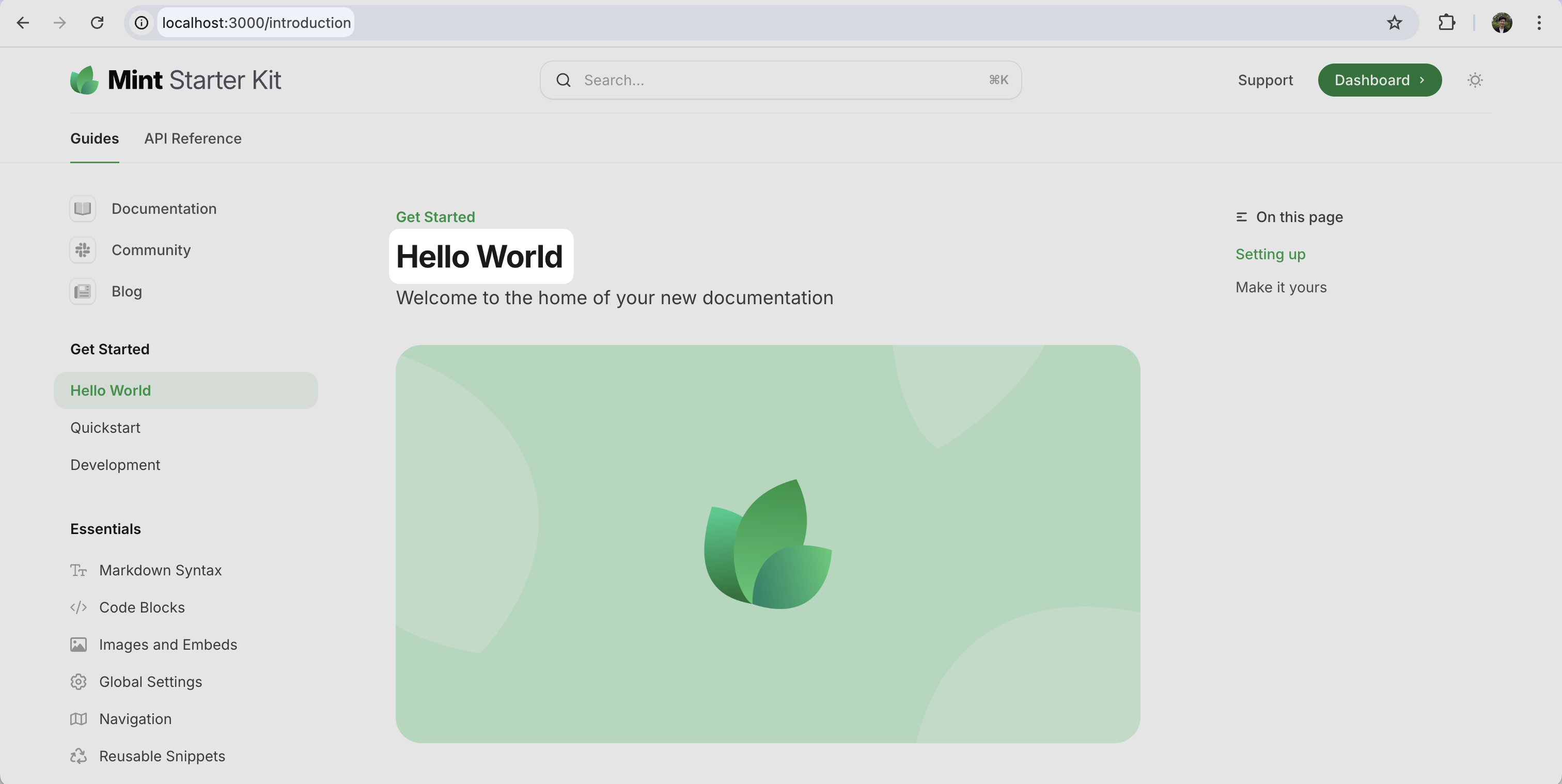
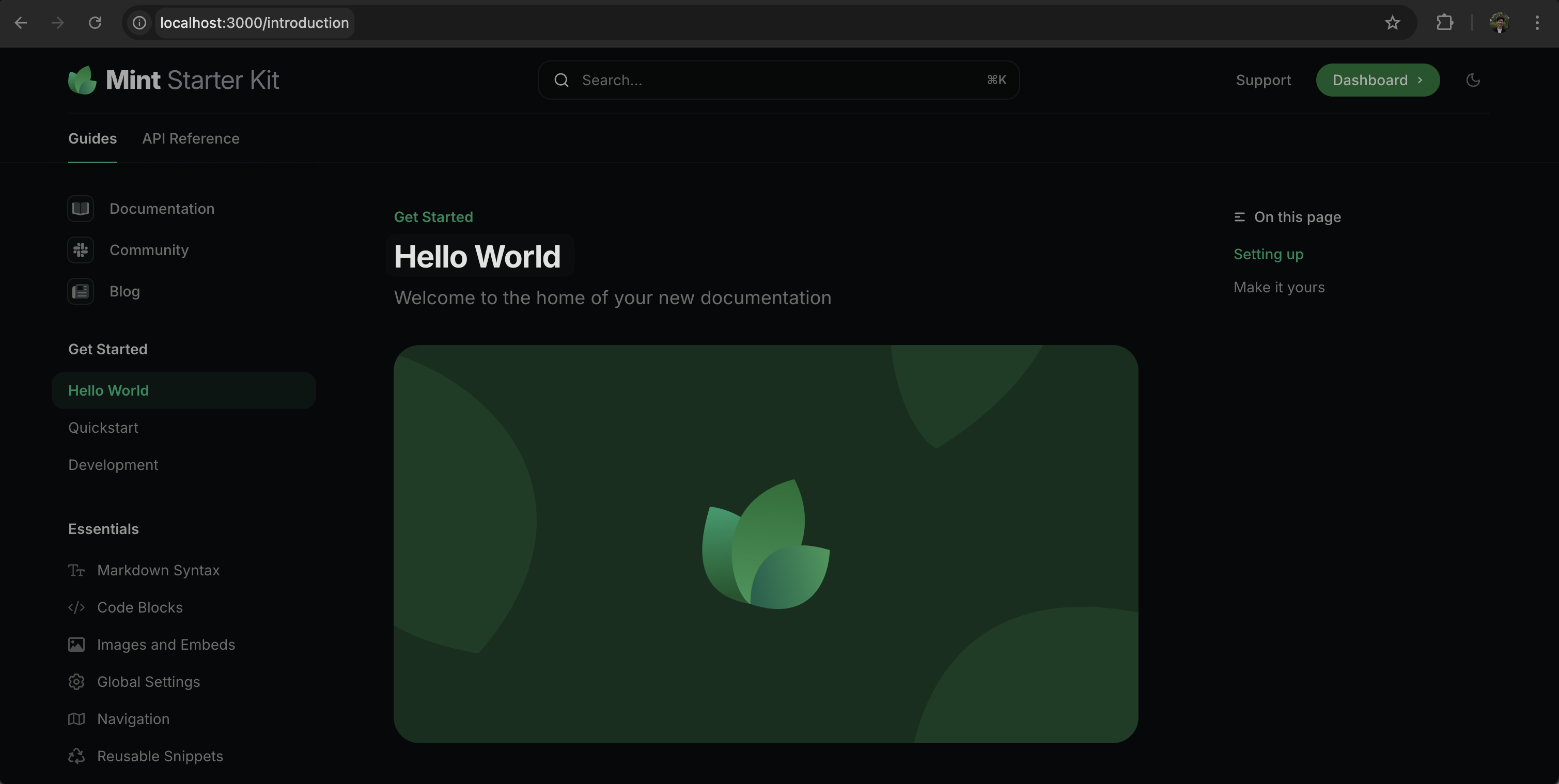
Preview the changes
To preview the changes locally, run the following command:localhost:3000.
Push the changes
When you are ready to publish your changes, commit and push them to your GitHub repository:<your-project-name>.mintlify.app.
Jump to adding a custom domain
Optionally, skip the web editor workflow and jump to adding a custom domain.
Web editor workflow
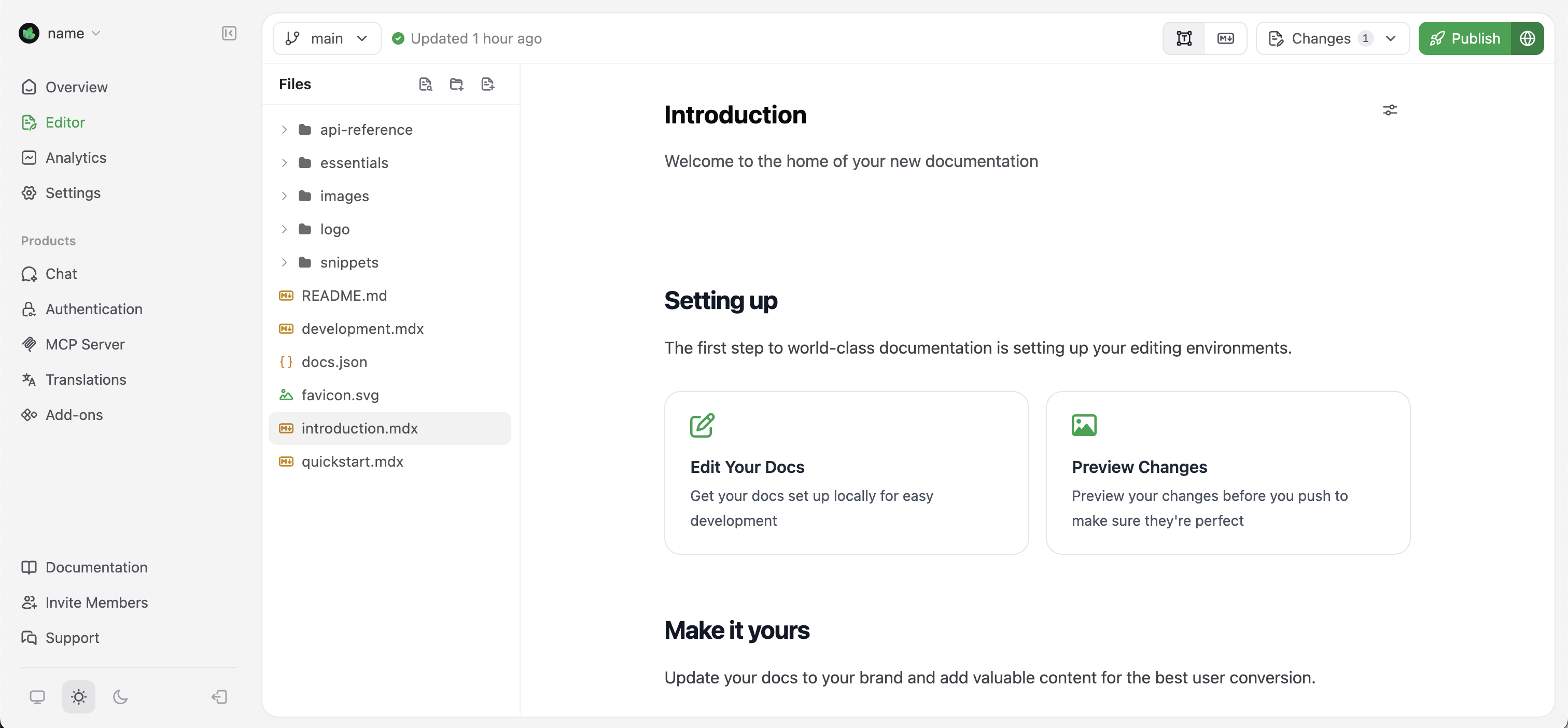
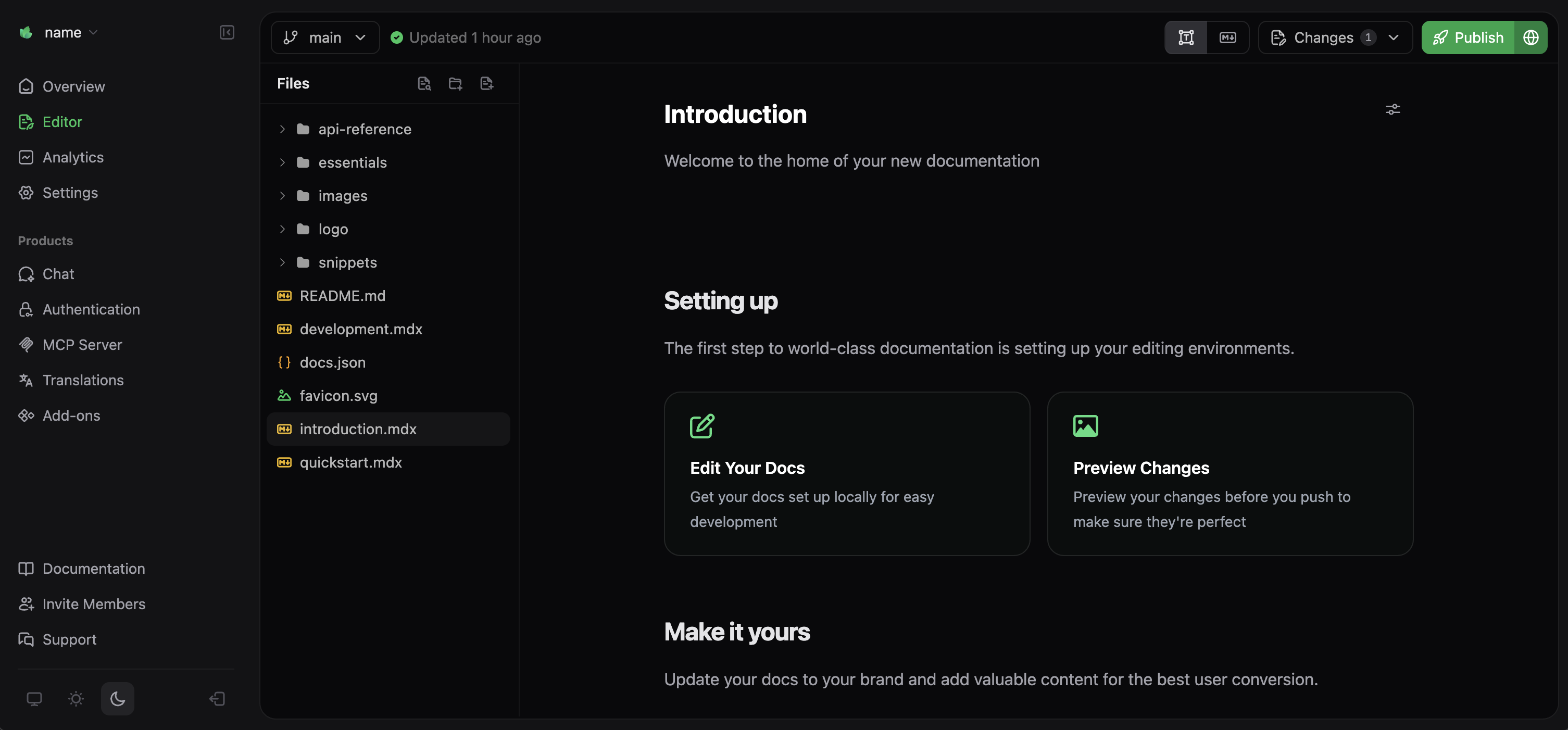
The web editor workflow provides a what-you-see-is-what-you-get (WYSIWYG) interface for creating and editing documentation. This workflow is best for people who want to work in their web browser without additional local development tools.Access the web editor
- Log in to your dashboard.
- Select Editor on the left sidebar.
If you have not installed the GitHub App, you will be prompted to install the app when you open the web editor.
Edit the documentation
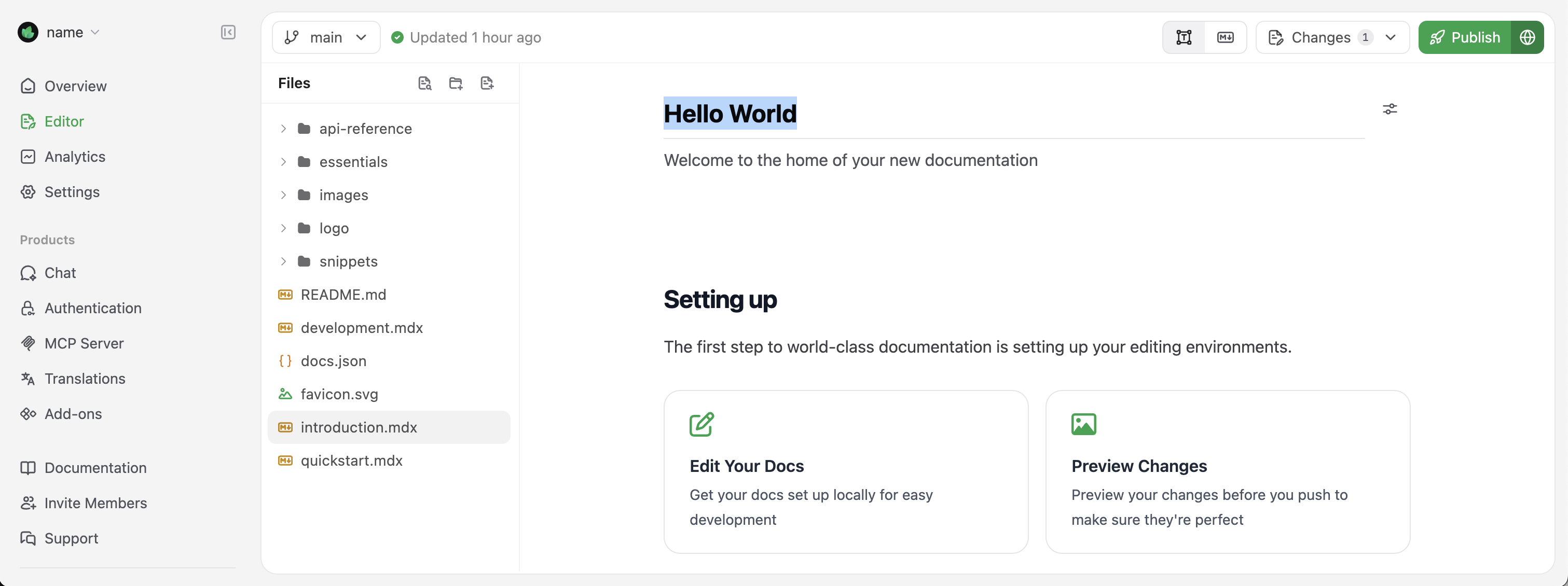
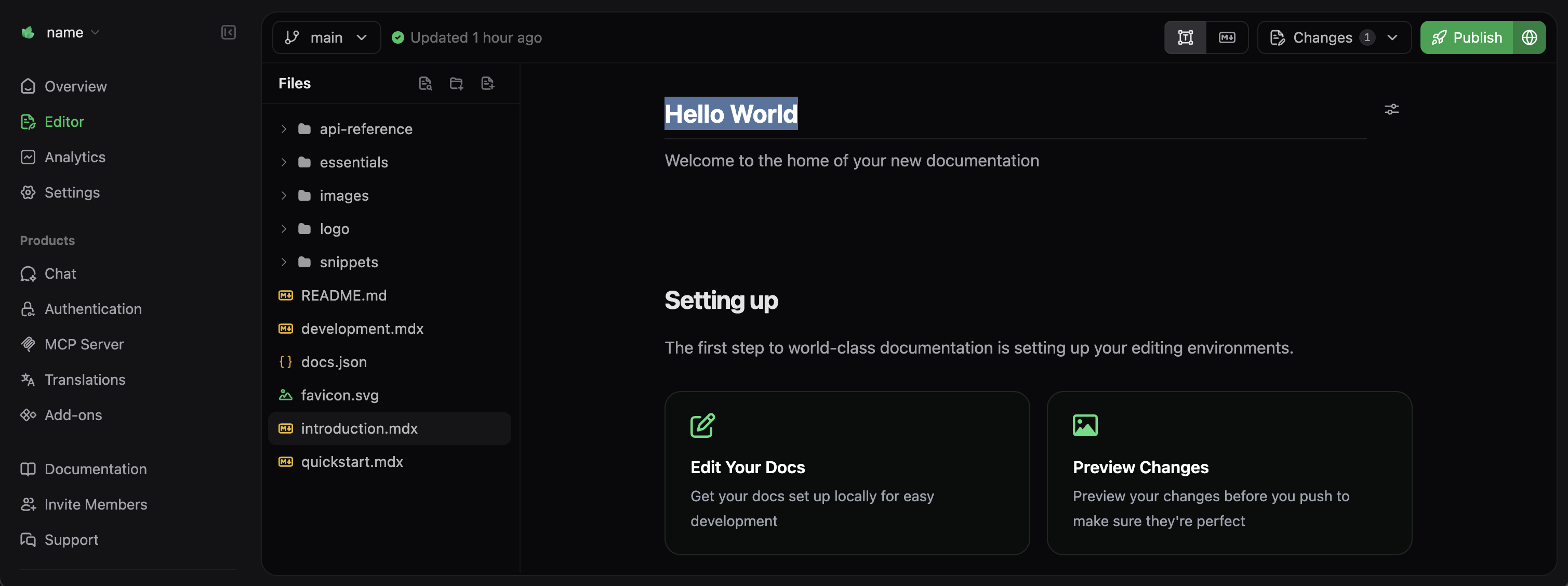
In the web editor, you can navigate through your documentation files in the sidebar. Let’s update the introduction page: Find and selectindex.mdx in the file explorer.
Then, in the editor, update the title field to “Hello World”.
Publish your changes
When you’re satisfied with your edits, select the Publish button in the top-right corner. The web editor commits your changes to your GitHub repository and triggers an automatic deployment to your documentation site. For more details about using the web editor, including using branches and pull requests to collaborate and preview changes, see our web editor documentation.Adding a custom domain
While your<your-project-name>.mintlify.app subdomain works well for testing and development, most teams prefer using a custom domain for production documentation.
To add a custom domain, navigate to the Domain Setup page in your dashboard.
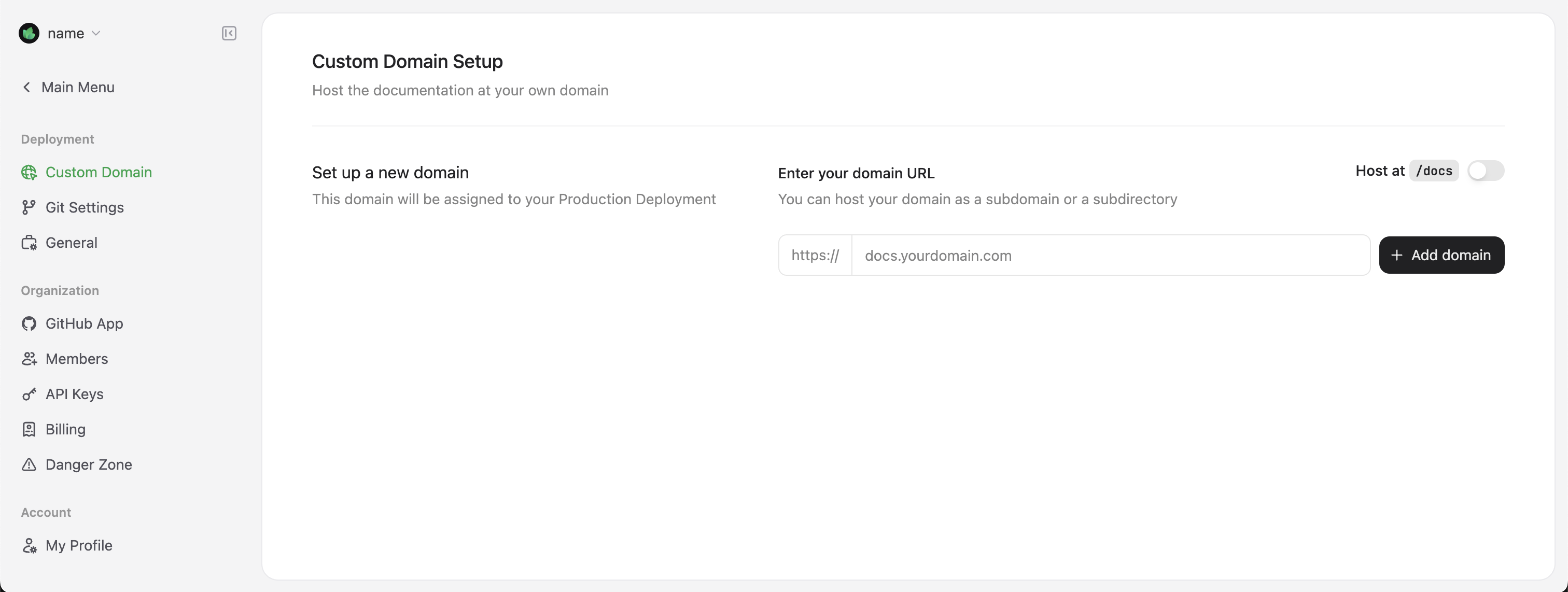
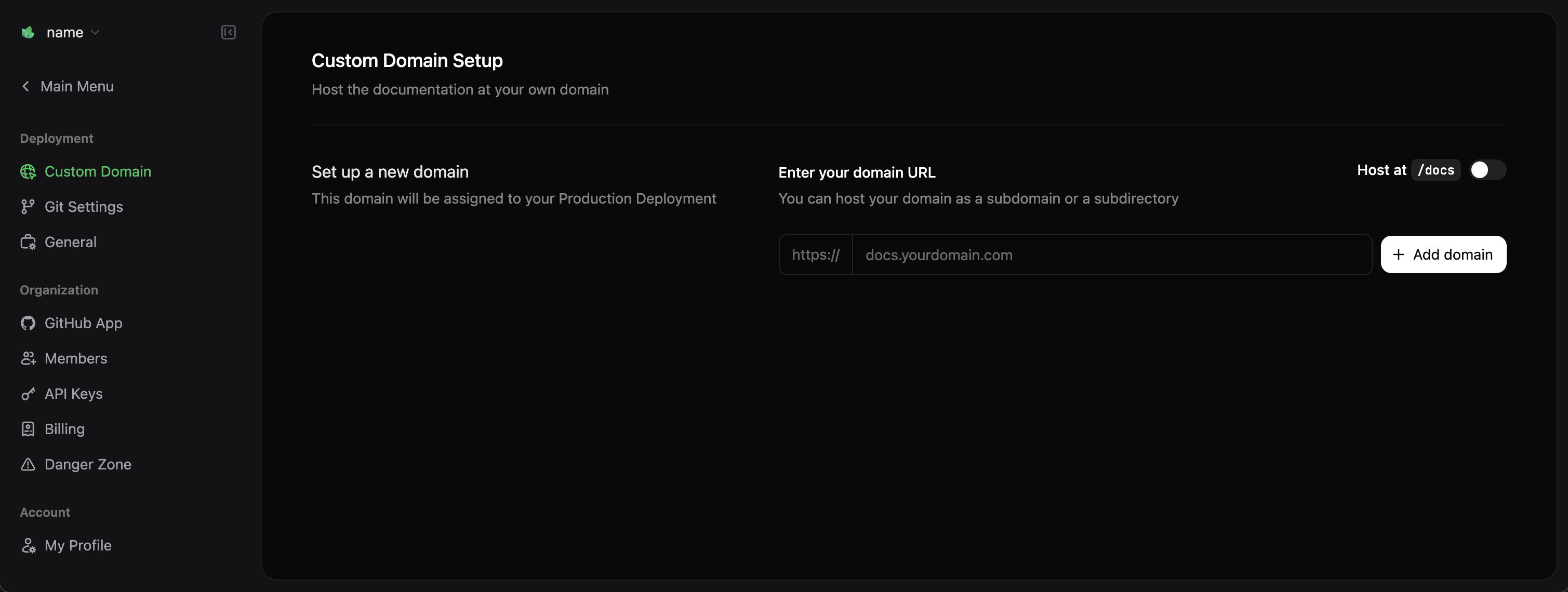
docs.yourcompany.com) and follow the provided instructions to configure DNS settings with your domain provider.
DNS changes can take up to 48 hours to propagate, though changes often complete much sooner.
Next steps
Congratulations! You have successfully deployed your documentation site with Mintlify. Here are suggested next steps to enhance your documentation:Configure your global settings
Configure site-wide styling, navigation, integrations, and more with the
docs.json file.Customize your theme
Learn how to customize colors, fonts, and the overall appearance of your documentation site.
Organize navigation
Structure your documentation with intuitive navigation to help users find what they need.
Add interactive components
Enhance your documentation with interactive components like accordions, tabs, and code samples.
Set up API references
Create interactive API references with OpenAPI and AsyncAPI specifications.
Troubleshooting
If you encounter issues during the setup process, check these common troubleshooting solutions:Local preview not working
Local preview not working
Make sure you have Node.js v20.17.0 or higher installed and that you run the
mint dev command from the directory containing your docs.json file.Changes not reflecting on live site
Changes not reflecting on live site
Deployment can take up to a few minutes. Check your GitHub Actions (for code-based workflow) or deployment logs in the Mintlify dashboard to ensure there are no build errors.
Custom domain not connecting
Custom domain not connecting
Verify that your DNS records are set up correctly and allow sufficient time for DNS propagation (up to 48 hours). You can use tools like DNSChecker to verify your CNAME record.